


Header
The header is just informational. It shows the version number, in case you need support, the serial number, your name and company, and a link to this online documentation.

COLOR EXTRACT extracts up to 100 colors from any photo to be randomly assigned to objects, elements, faces, or even other procedural maps; a very fast and easy way to assign grass colors to grass blades, tree colors to leaves or sand colors to a noise map.
The header is just informational. It shows the version number, in case you need support, the serial number, your name and company, and a link to this online documentation.

Bitmap
This is where you load the bitmap / photo that you want to use as base for the color extraction. You can load any bitmap that 3ds max supports. The bitmap path will be available in the asset tracker, in case you need to re-assign a missing bitmap.

Extract 100 most common colors
This parameter sets the number of colors that will be extracted from the loaded bitmap. You can set the value from 1 to 100 which will result in the same number of most common colors from the bitmap.
Skip first xx colors
You may not be happy with the default extracted colors, so you can skip the first xx colors to get better extraction results.
Color Display
The color display serves as representation of the extracted colors and their order. In case you want to use the colors in a linear sequence order, they will be used one by one from left to right, top to bottom.

Manual
If you want to change the order of the color sequence, you can use the manual reorder function and drag-and-drop the colors to different positions. Inserting a color further in front will shift the colors one step behind, inserting a color behind will shift the colors before one step to the front.
Autosort by
The autosort function will sort the colors according to Color (RGB values), Luminance or Count (order in which they were extracted). This is very helpful whenever you want to create special color-patterns or soft transitions in procedural maps. You can choose the following autosort modes:

Category
This drop down menu contains different distribution categories on which the colors are assigned to geometry:
Input map:
Here you can assign (almost) any other map containing color input options. Especially procedural maps (e.g. noise, falloff, speckle, tiles and more) will benefit from the new color input. While you are usually able to include maps in the color slot of the corresponding procedural maps, this input map works different. The color information from the input map will be used to select the colors depending on input colors. So it drastically extends the current color range of procedural maps.

Color Harmonizer
The color harmonizer adapts the colors to 7 different color harmonies: i-Type, V-Type, L-Type, I-Type, T-Type, Y-Type, X-Type. More information on Color Harmonization can be found here: http://www.websiteoptimization.com/speed/tweak/color-harmony/
Gamma correction:
Depending on your color workflow, it may be necessary to adjust gamma values to get a linear workflow. The Gamma Correction can be set to a value from 0.1 to 10.0.
Hue, Saturation, Value
These parameters adjust the HSV amounts from 0% to 100% for all colors at once. This way you can change the overall color appearance easily.
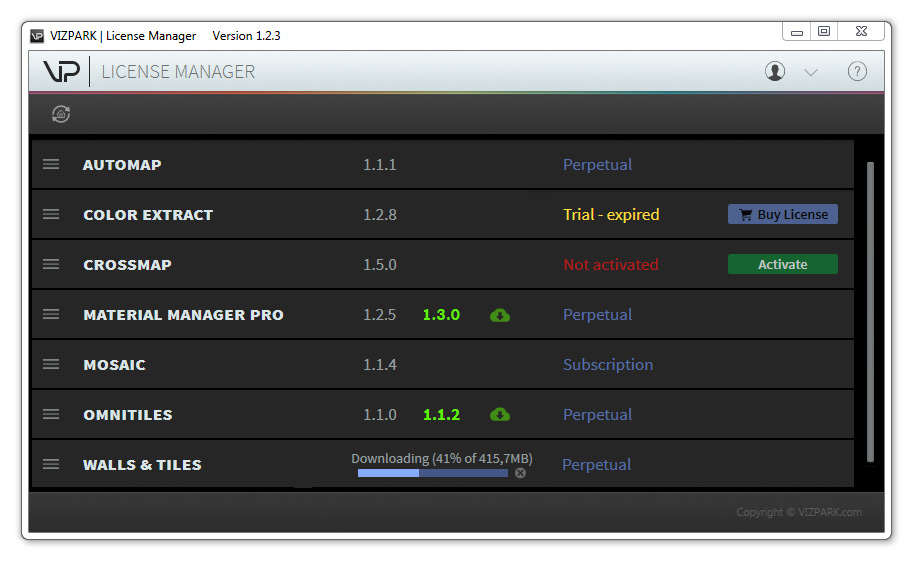
Installation is easy, just start the installer “Color Extract installer.exe” and select the install location and plugins you want to install. The installer automatically installs all plugins, demo files, preview images, documentation, Material Manager LE and the License Manager for activation.
More about the License System